


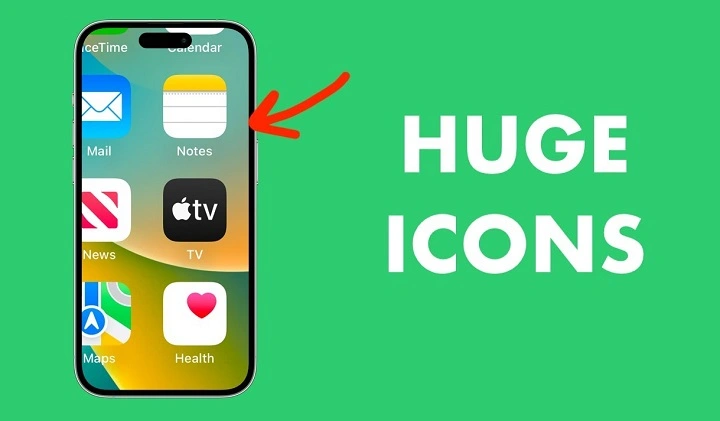
iPhone design philosophy is made around keeping the interface clean, balanced and visually consistent. But as with anything, not everyone is happy with the default app icon size. For a lot of users, the standard app icon size just feels too small — particularly among seniors or people who have trouble with their vision, or those of us who like seeing things more clearly. This causes eye strain, mis-taps and a poor user experience.
If you’ve been asking yourself how to make app icons larger on iPhone, I hear ya. iOS doesn’t offer a system-wide feature to change the size of icons like many other platforms, but Apple provides a handful of built-in features that scope up the size of the text and app icons on displays across both iPhones running iOS 13 and iPads running iPadOS 13.
In this article, we’ll show you every single known way to make app icons bigger on your iPhone and iPad, explain how they’re done, and then help you decide which method is best for you. By the end, you’ll have all you need to make your iPhone more accessible and comfortable.
The Reason Why App Icons Seem Too Small on iPhone
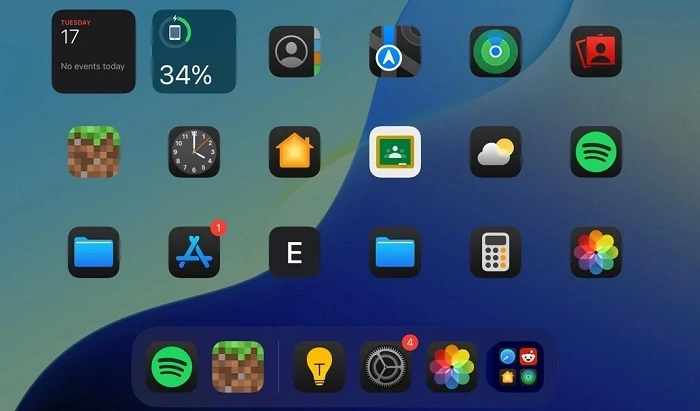
Icon size in Apple software is a compromise between screen space, attractiveness and usability. Icons could seem tad smaller than we have got used to, especially for users moving from older iPhones with 4-inch displays and Retina display.
Then, iOS would like everything to be consistent across devices, and icon size isn’t something that is dictated by personal preference anymore. While this is a great layout option for many users, it limits potential options for those who need something more open and inviting.
The good news is that Apple has included some secondary display and accessibility settings that let you modify how big app icons are.
Making App Icons Larger With Display Zoom
How to make app icons bigger on an iPhone The best way to make your app icons bigger is by using a feature called Display Zoom. This option enlarges everything across the interface, apps icons, text, buttons and menus.
With Display Zoom turned on, the iPhone adopts a smaller-screen model’s layout, making everything look bigger and easier to tap.
To enable Display Zoom, open the Settings app and tap on Display & Brightness. Scroll down until you find Display Zoom, then tap View. Instead of Standard, tap Zoomed, then tap Set. Your iPhone will reboot and the changes will take effect.
After you’ve restarted your device, you’ll see that app icons are significantly larger and have more space between them than before. This is the nearest iOS gets to letting you increase icon size as it were.
How Display Zoom Changes Your iPhone
Display Zoom is more than just bigger icons. It also enlarges text, system buttons, notifications and interface elements throughout the overall operating system.
This is nicer to read, but it reduces the content on the screen a little bit. Some people might see fewer icons per row and more scrolling in apps.
As long as they want bigger icons, this trade-off is a good one for most people (not to mention for those looking out for comfort and legibility).
Making Text Larger for Better Overall Readability
While text size adjustments do not directly affect app icon size, they will make the labels under icons easier to read and therefore more usable.
To enlarge text size, head to Settings and then Display & Brightness; tap Text Size. Slide the slider to the right to enlarge text.
For greater flexibility, go to Settings, then Accessibility, Display & Text Size and switch on Larger Text. It enables even a broader set of text sizes, and that has made for labels across the system that are much larger.
This is especially usable when used in conjunction with Display Zoom.
Also Read: How to Block an App on Android
Working With Accessibility To Better Suit Your Vision
Apple’s array of accessibility features are meant to allow users to configure devices for their personal comfort and clarity. Although these don’t specifically resize app icons, they provide other excellent options for improving your dock’s visibility.
Now with Bold Text icon labels can be more visible than ever! When you turn it on, the system restarts and when it reboots, all text across iOS is bolder and more legible.
Increase Contrast can help prevent icons or words from blending into a background. Reduce Transparency takes away blur effects, giving your icons a sharper look.
Combined, they can help make app icons much more easily recognizable.
Organize Apps for More Visible Icons
Another thing that can make icons feel bigger in practical terms is reducing visual clutter. The fewer icons that are on the screen, the more each of them stand out.
Folders help declutter by grouping similar apps, so there aren’t as many icons on your home screen. You could also restrict the number of app pages, or rely on the App Library for apps that aren’t used as often.
Adding frequently used apps to the first home screen makes them easier to access, and lessens reliance on accurate tapping.
Do Widgets Make Icons Appear Larger not?
Widgets don’t change the size of the app icon, but large widgets can supplant groups of icons and make the screen less dense. This can help make the other icons more visible and easier to tap.
For instance, if a large widget is placed at the top of the home screen, there will be fewer icons under it due to physical spacing.
Not a full size increase, but increases the usability for more people.
And this is Why iOS Prevents Manual Resizing of App Icons
You can’t manually resize individual app icons on IOS, they either fit in a grid size or not. Apple values a unified user experience between the apps and devices, so they can’t be too customized.
For example, a user resizing an icon might make a UI look bad or clash with an app’s own design guidelines. Instead, Apple concentrates on systemwide scaling options such as Display Zoom.
Whilst the latter is more restrictive, it provides stability and visual coherence.
Third-Party Apps and Icon Size — What You Need to Know
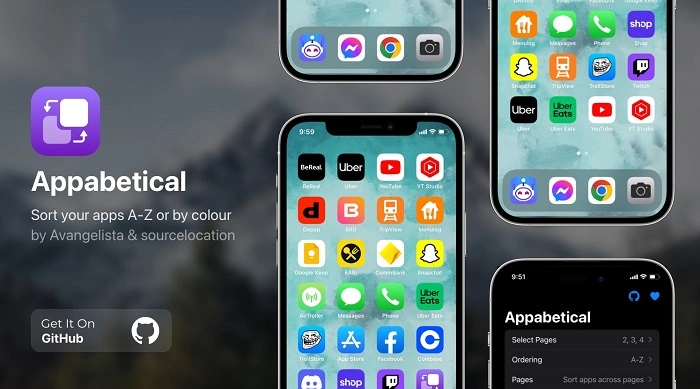
Some third-party applications tout the ability to tweak the look of your home screen, but none really let you resize iOS apps like this. In reality, they end up making shortcuts or custom launchers that go on top of the interface.
These are finicky, and often break when you update iOS. Apple will not cover these modifications under warranty as doing so can affect performance or security.
For consistent results that do not pose a risk to your device, it’s best to work with built-in iOS settings.
Tip – The Best Combo For Larger App Icons on iPhone
For most people, Display Zoom works best when paired with larger text and accessibility options. This combo increases icon size, readability and usability while keeping stability of the system.
With it in place, your iPhone will be more ergonomic to operate over long periods of time.
Frequently Asked Questions (FAQs) About How To Make App Icons Bigger Iphone
Can you custom resize iPhone app icons?
Nope, you can not resize icons in iOS. Scaling choices are limited to some system-wide options.
Does something go wrong with app performance if you enable Display Zoom?
No, Display Zoom just alters the interface and doesn’t have a significant effect on performance or battery performance.
Will Display Zoom function on any iPhone?
Display Zoom is compatible with most recent iPhones, though the feature’s existence does depend on your device.
Can I go back to regular icon size later?
Sure, you can change it back to Standard view at any point in the Display & Brightness settings.
Is it safe to use 3rd party icon re-size apps?
They are here unofficially and subject to gratuitous malfunction. iOS natural tools are safer, more reliable.
Although iOS doesn’t have an easy way to adjust the size of app icons, Apple includes a setting in designs that allows you to make them smaller or bigger on your screen. Display Zoom is still probably the best method to use if you want your app icons big on an iPhone, especially when combined with text size and other accessibility settings.
You can tweak the options here to suit your preferences for a more pleasant, readable and user-friendly experience. If you’re looking for improved visibility, easier to read navigation, or less eye strain these in-dash options are the obvious answer.
A few minutes of adjustments can vastly improve the way you use your iPhone every day.