


Authenticator apps are now a key part of digital security. Two-factor authentication (2FA) keeps the bad guys out of your accounts with a second step to verify your identity. This provides robust security but can also be terrifying when you’re suddenly locked out of your authenticator app.
It is common for people to look for ways to unlock an Authenticator app due to a forgotten PIN, losing a device or because they reinstalled it. It can be stressful if the app is linked to accounts you care about. In most instances, however, we can get you back in.
We’ll tell you everything there is to know about what it means to have a locked authenticator app, why this can occur and all of the legitimate ways to unlock or recover access safely. So whether you’re rocking Google Authenticator, Microsoft Authenticator, Authy or something else, the below guide will help you understand your options in crystal clear detail.
Why an Authenticator App Is Locked
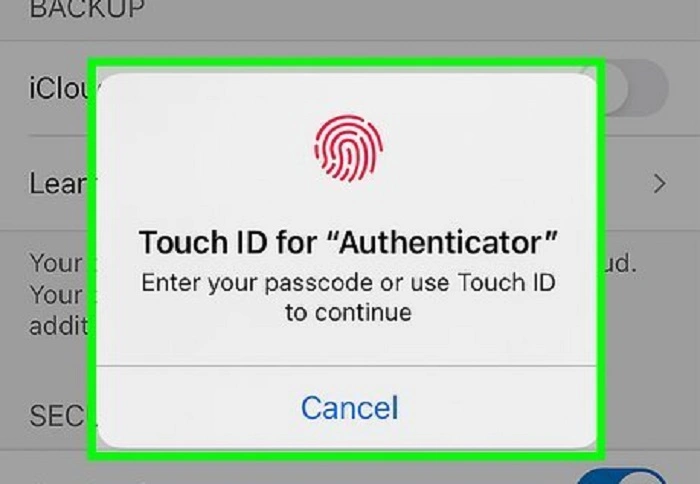
An authenticator app is said to be “locked” when you can’t open it or create verification codes. This can occur when an app demands a PIN, fingerprinting or facial recognition to unlock it, as well as device-level security measures you’re unable to obtain.
In a few cases, the lock is deliberate and meant to exclude unwanted visitors. In other cases, it’s due to a forgotten passcode, a phone reset (where all data and contacts are lost across devices) or upgrading without the backup enabled.
Knowing why the lock is there is the first step to unlocking the app.
Popular Causes of Authenticator Apps Being Locked
Authenticator apps don’t lock randomly. There are certain situations that cause this access problem.
One reason is the scenario where they forget their app pin or forget to unlock it by bio metric. What happens to a lot of users is that they turn on an additional bit of security in their app and then forget the credentials.
Another common reason for getting locked out is when a person switches phones or resets one without backing up their authenticator app. Because a lot of authenticators store the code on your device, you may wipe it all out if the app is reinstalled.
App updates, OS upgrades or corrupted app data can also cause the App not to load properly. Occasionally, security policies from your work or school may limit access.
How to turn off the authenticator app with device security
Authenticator apps generally depend on the security built into your phone. If your device unlocks, the authenticator app will open as expected.
If you are having trouble with biometric access, try verifying that your fingerprint or face recognition is functioning correctly in your phone’s settings. Reenrolling the biometrics sometimes fixes it.
If you know half the PIN to the app, try entering it carefully. Too many wrong attempts may also lock the notepad app for a while so don‘t guess an excessive number of times.
Unlocking Google Authenticator
Google Authenticator itself is not cloud-backed by default, so recovery opportunities are fixed.
If your device is physically locked because of an app, unlock your phone. But if you forget your device PIN or reset your phone, the app cannot be unlocked without that first step.
In this situation you need to reorganize two-factor authentication in each and every account which you have bound with Google Authenticator. This includes signing into the service with backup codes or other second factors, and scanning new QR codes.
Also Read: Ko-fi App
Unlocking Microsoft Authenticator
Microsoft Authenticator has better recovery options than quite a few others.
If you have enabled cloud backup and sign in with the same Microsoft account, just reinstall the app and restore data from the backup can help to automatically unlock your accounts.
When the app is secured by biometric security, simply reviewing your device’s security settings will typically clear things up.
For work or school account, you might need to contact your IT administrator to reset access for authentication.
Unlocking Authy and other Cloud-based Authenticators
Apps such as Authy are built with recovery in mind.
Authy offers multi-device syncing and cloud backups. Forget your app PIN? In many cases, you can reset it after confirming your phone number and email address.
Reinstalling the app and attestation of identity are typically sufficient to get you access to your tokens again. So that’s one of the reasons many people pick Authy.
What If You Forgot the Authenticator App PIN
If you don’t remember the PIN that you set up in the authenticator app, the steps to reset it depend on how your app is configured.
A few apps also let you reset the PIN after verifying your identity. Among other things, they also require to uninstall the app and manually add accounts back.
Before you uninstall, make sure you have your accounts’ backup codes. These codes may be the only way to regain access if you are locked out without the authenticator.
Regaining Access with Backup Codes
Backup codes are those emergency access codes you get when you turn on 2-factor. They were built for situations such as this one.
If your authenticator app is locked, sign in to the impacted account via a backup code. Log in, then disable two factor authentication and re-enable to get new codes and reconnect your authenticator app.
This is the easiest and most safe way to recovery.
When You Need to Reinstall the Authenticator App
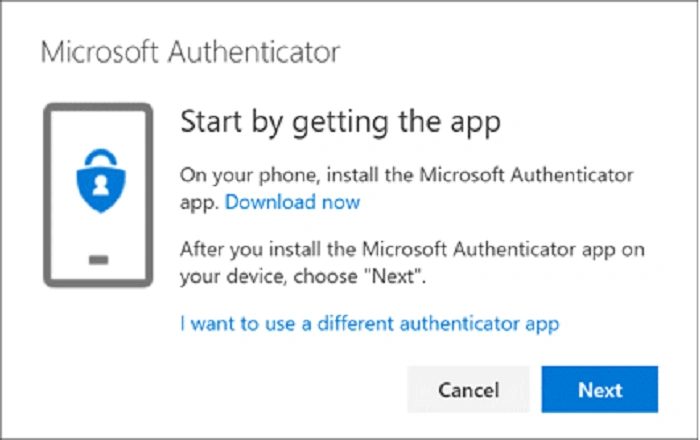
Occasionally you can’t unlock the app and all you have to do is instal it again.
If the app is uninstalled stored codes will be removed, unless connected to cloud backup. After the reinstallation, you will have to turn on two-factor authentication for each service again.
It’s a bit of a hassle, but does put all responsibility for your security back in your hands.
How to avoid getting locked out of the authenticator app in the future
Preventive measures are necessary once access is returned.
Enable cloud backups if available. Store backup codes somewhere safe (ideally not on your computer). Use a password manager to keep track of recovery details.
Try an authenticator app that allows multi-device access if you switch phones often.
Taking these little steps can save you a whole lot of hassle down the road.
Are Third-Party Unlock Tools Safe to Use?
No reputable software can activate an authenticator app without suitable verification. Any application or website advertising the ability to bypass authenticator security is almost certainly fraudulent.
Authenticator apps are meant to be resistant to unauthorized entry. Only use authorised official recovery methods by the app or service.
Frequently Asked Questions (FAQs)
How to unlock authenticator app without reinstalling it?
If the lock is device-based or biometric, unlocking the phone may bring access back.
What if I delete my authenticator app?
When users delete the app, this action clears out codes except cloud backup is activated.
Is it possible to restore authenticator codes on another phone?
Yes cloud backup or reconfiguring 2FA with Backup codes.
Is there a way to change the pin for Authenticator App?
Some apps support PIN resets, after identity verification; some do not.
Can I use more than one authenticator app?
It’s safer to put trust in one good app, with backups, than in multiple apps.
Getting locked out of an authenticator app can be a hassle, but the issue is often fixable with some patience and the right steps. These apps are, after all, intended to safeguard your accounts, so harsh security is more of a feature than a bug.
The key takeaway is preparation. Keeping a backup of recovery codes, turning on cloud sync and picking the right authenticator app should make recovery rapid and painless. If you depend on two-factor authentication, managing your authenticator app is just as critical as handling your passwords correctly.
By following the steps laid out in this article, you should have a good sense of how to unlock an authenticator app securely and prevent those dreaded lockouts.