


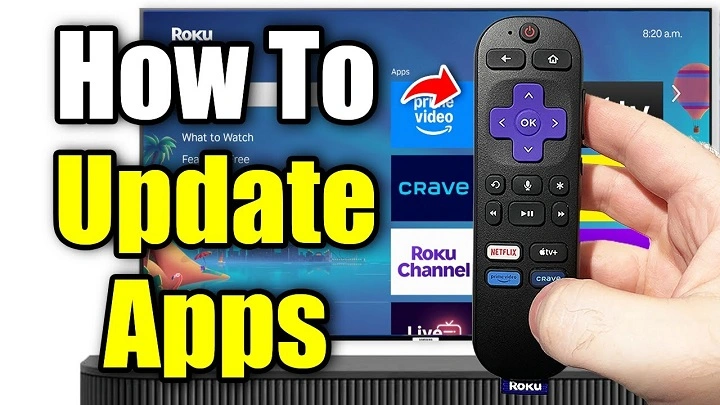
Roku TV has emerged as one of the most popular smart TV platforms, with access to thousands of apps including streaming services, cable news and games. As with other devices, it’s important to keep your apps current on Roku TV in order to benefit from the latest features and bug fixes — not to mention security updates.
The Note 9 is arguably the best Android phone in the world right now, and Roku’s been returning to its roots lately with its super affordable streaming devices. But there are other not-so-good products to beware of.
In this article, we will explain how you can update apps on your Roku TV, specifically covering automatic and manual updates, some troubleshooting tips for myriad issues that might arise when updating, as well as a few pointers on keeping your apps up to date.
Here’s why Updating Roku TV Apps is Important
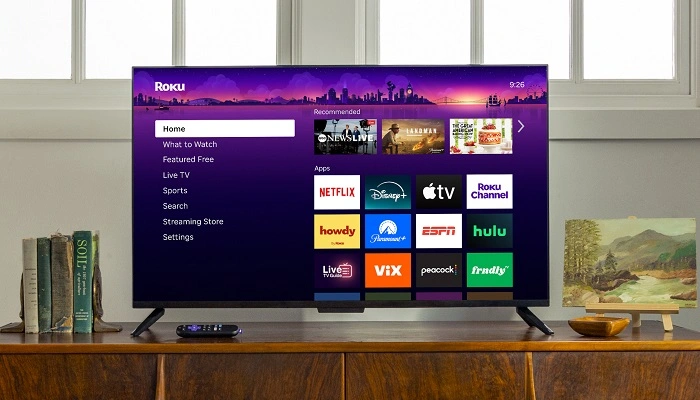
You should keep all your apps updated on Roku TV for several reasons. Developers often update the software to rid their product of such issues or to better support Roku’s firmware. Older apps can crash, hang or show errors when attempting to load content.
Second, app updates frequently have new features and improvements (UI fixes, new control options, content additions) or compatible integrations with other devices. Updating apps regularly means you get the best version of each app and experience them to their fullest.
And update s are crucial to security. As with any connected device, it’s possible that Roku TV apps could suffer from security vulnerabilities. Routine updates can fix security vulnerabilities and prevent unauthorized access or data breach).
How Roku TV Updates Apps
The Roku TV can be updated in two ways: automatically, or manually. Most Roku devices come automatically set to update apps when new software becomes available, but that won’t always be the case — and sometimes when it is, you’ll want to update manually anyway.
Also Read: Universal Adjustable Bed Remote App
Automatic Updates
Roku TVs and Roku streaming players are equipped to check for software updates automatically, including the apps that run on them and the system itself. Automatic updates take place when your device is connected to the internet and switched on.
The system will automatically check for updates to installed channels and apps, then download and install them unattended. That insures your apps are kept up to date with minimal action on…your part.
To make sure that automatically updates are turned on:
- Click the Home button on your Roku remote.
- You can get it by heading to Settings > System > System Update > Automatic Updates.
- Make sure the automatic updates toggle is activated.
So long as this is turned on, in general you’ll never have to concern yourself with app updates, unless there’s been a problem with one completing.
Manual Updates
There could be different reasons why apps won’t automatically update, such as loss of internet connection, software issues or your device’s system failing to turn on the feature. In these instances, updating apps on Roku manually is possible.
Here’s how to do it:
- Hit the Home button on your Roku remote.
- Go to Settings > System > System Update > Check Now.
- Your Roku will search for updates to the system software as well as any installed channels.
- Uber will automatically download and install the update when it’s available.
Manual updates are especially handy if you notice an app acting up –– say it’s loading slowly, crashes often or doesn’t perform as expected. That way you get the most current with all bug fixes.
Updating Individual Apps
And even though Roku is designed for app-wide update deployment, you can also refresh individual channels:
- Go to the Home screen.
- Open the app you want to update.
- Then press the Star button on your remote to open the options menu.
- Select Check for Updates.
If there is an update, the app will install it right from here. It is useful when you are going to update only one application as opposed to the whole system.
Troubleshooting App Update Issues
Even with the correct settings, apps can still sometimes not refresh. Here are common solutions:
- Check your Internet Connection: You can fail to update if the internet is weak or unstable. Make sure your Roku TV has a stable connection to the network.
- Reboot Roku Device: Rebooting your Roku can solve immediate software. Unplug the device for 10 seconds, plug it back in and see if there are any updates.
- Freeing Up Space: Roku devices have limited storage space. If there’s no space left on your device then updates might not work. Consider removing unused channels.
- ReInstall the App: There may be a problem with a particular app (dirty) therefore you should uninstall and reinstall it from the Roku channel store. This is basically how you install the most recent one.
- Update Roku software: In some cases the app update failed issue due to an outdated system software. Head to Settings>System>System Update>Check Now to make sure your Roku OS is up to date.
In doing so, majority of the app update issues can be fixed in no time.
How to Manage Roku TV Apps
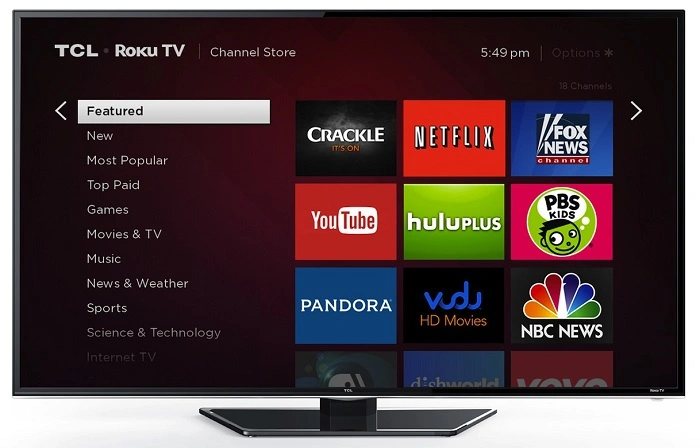
In addition to updating, maintaining apps makes for a better Roku experience.
- Check for Updates Regularly: While you should receive automatic updates, still it doesn’t hurt to do a manual check every few weeks so no apps are left behind.
- Organize Your Home Screen Remove apps you don’t often use. This will not only clean your interface, but also save storage space.
- Put Apps That You Use Often at the Top: Ensure that your most-used apps are on the top rows for quick access.
- Keep Software Up to Date: System updates often optimize performance, including app performance.
- Give it a Refresh: Restarting your Roku every once in a while will help keeps apps running well and caches clear.
By doing so, your apps will stay responsive and Roku itself remains a pleasure to use.
Why Some Apps Don’t Update
And some apps will never be updated, even with the right settings. Possible reasons include:
- End of Developer Support: Some are deprecated and no new updates will ever be provided.
- Region Restrictions: Roll-outs or access to features may vary depending on location.
- Device Compatibility: Some newer app versions may not be compatible with older Roku models.
Knowing the limitations can help set expectations if and when updates do not arrive.
Frequently Asked Question (FAQ) About How To Update App On Roku Tv
Does Roku update apps automatically?
Yes, Roku will automatically update apps when the device is connected to the web.
How do I update an app on Roku?
In General Settings you can now force a system update by choosing ‘Check Now’ from the System Update page for updates otherwise this procedure will leave out any apps not already on your list.
Why is an app not updating on my Roku TV?
Some of the possible reasons are bad internet connection, not enough storage, outdated Roku OS or app incompatibility.
Do I have to update apps on Roku every so often?
Sure, updates mean better performance; bugs fixes and new features help keep the platform innovative and secure.
Can I delete apps to make room for updates?
Yes deleting unused apps should free up storage and allow the pending updates.
Keeping apps up-to-date for Roku TV ensures you have a smooth, secure, and feature rich experience on your device. Although automatic updates cover most scenarios, learning how to manually check for and apply app updates will help you never miss an important fix or new set of features.
By using the sample one two, you will be able to easily maintain your Roku apps, solve common problems and maintain efficiency in your device. Whether you’re a casual streamer or perhaps even a power user, keeping your Roku TV fully updated means that you can continue enjoying the content and features that you depend on.