


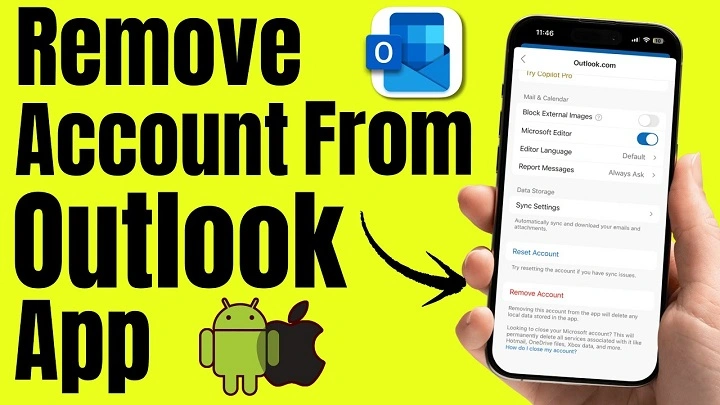
The Outlook mobile app is a convenient way to access your email, calendar, contacts, and tasks on your Android phone or tablet. Designed to streamline your digital life, you’ll want to occasionally remove some accounts from the app. Maybe you’ve moved on to another email provider and no longer need an account, or perhaps you’re looking to free up storage space and declutter.
Removing an account from the Outlook mobile app, however, is relatively easy but simple steps might vary depending on if you’re using an Android device or an iOS, and your email provider.
In this guide, we’ll show you everything you need to know remove accounts from Outlook mobile apps, including step-by-step instructions and tips to prevent some common problems.
Why do you Want to get an Account out of Outlook Mobile App?
There are any number of reasons you might want to delete an email account from Outlook:
- Changing Email Providers: If a needed account is no longer in use, delete it to stop being tired of receiving emails.
- Security: Take accounts off of old devices so they don’t fall into the wrong hands.
- Eliminating Clutter: If you have a bunch of different accounts added to Outlook, keeping those that aren’t in use out of the picture gives you manageable and clean interface.
- Freeing Storage: All accounts sync emails, attachments and contacts. Deleting an account will free up precious storage space on your device.
- By knowing why you’re removing an account, you can select the appropriate method and prevent the accidental deletion of data you might require in the future.
Taking an Account Off the Outlook Mobile App
For iPhone & iPad (iOS devices)
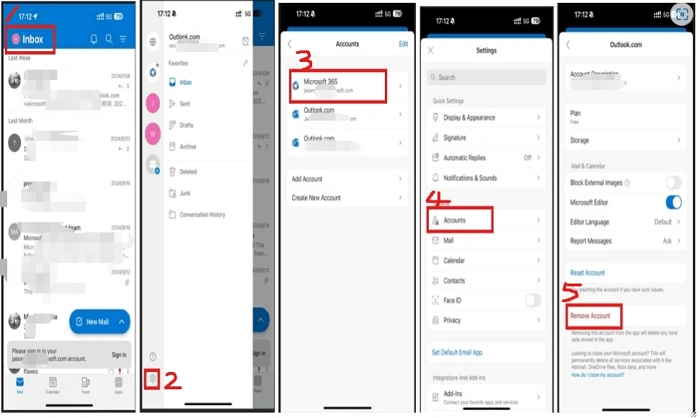
Deletion of account on iOS is quite simple. Follow these steps:
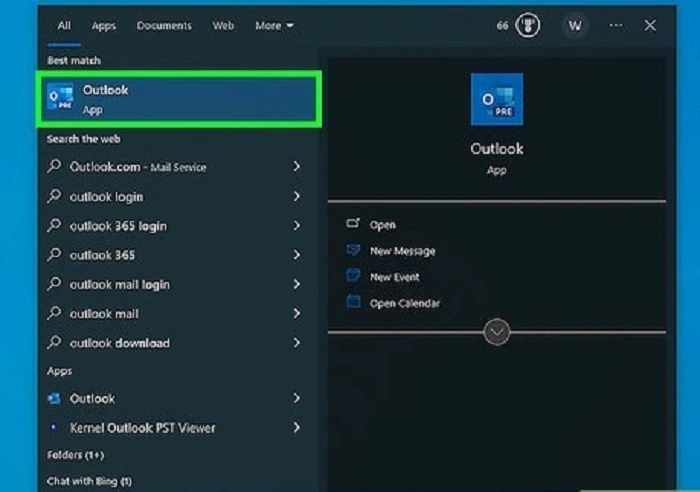
- Launch the Outlook app on your iPhone or iPad.
- Tap your profile icon in the upper left-hand corner.
- Click on the settings inventory icon at the bottom of themenu.
- Tap the account you wish to delete under Mail Accounts.
- Scroll down and tap Delete Account or Remove Account.
- Confirm your choice when prompted.
When removed, all emails, events, and contacts for that account will be erased from the app on your device. The emails will still be available on the email provider’s server unless you delete them from the provider itself.
For Android Devices
For Android, you will have to un-link your account instead:
- Launch the Outlook app on your Android phone.
- Tap the profile icon in the upper-left corner of the screen.
- Select the Settings gear icon.
- Make sure the email account you want to remove is under Accounts.
- Tap the option Delete Account or Remove Account.
- Confirm your choice.
Once you do that, the account and all associated synced content will be gone from Outlook. Remember, emails saved on the server will not be affected unless deleted manually.
Also Read: How to Unlock an Authenticator App
Removing Microsoft Accounts
If the email account that you are trying to add is Outlook.com, Hotmail. com, Hotmail or Live), deleting it from the app will not remove the account altogether. You’re still able to access it through the web or other devices. This is helpful if you’re looking to manage the number of active accounts you have on your mobile phone without having to lose access forever.
Removing IMAP or POP Accounts
It’s used with IMAP and POP accounts such as Google, Yahoo, and third-party email providers. And the process for deleting them in Outlook Mobile is similar as to what’s above. But keep in mind these accounts typically sync specific folders or messages, so ensure you’ve backed up any important emails before deletion.
And if you accidentally delete an account, you can just add it back by going to Settings > Add Account and input your credentials.
What to Keep in Mind Before Deleting an Account
Before you remove an account from Outlook, be aware of the following:
- Loss of Data: Emails and attachments saved on your device will be deleted, but emails saved on the server will stay.
- Calendar Events: If you have events that synced with your account, they will disappear from the app but not from the server.
- Contacts: The contacts for the account are going to be deleted from Outlook—be sure you save any important contacts elsewhere!
- Re-Adding Accounts If you intend to re-add the account in the future, ensure you have your login details to hand.
Following these steps protects you from losing valuable information when deleting an account.
Common Issues and Troubleshooting
While the process to delete an account is normally a painless one, problems may arise. Here are typical issues and their resolutions:
- No Delete Option: Some work or school accounts have the option to delete limited. If you’re unable to delete the account, contact your admin.
- Sync Errors Post Deletion: If you see emails or calendar entries even after deleting them, please restart the app/device.
- Deleted Accidentally: If you inadvertently delete the wrong account, just add it back using Add Account in settings.
- App Crash: When removing accounts, The app will crash sometimes. This usually goes away by updating the app to the newest version.
- Authentication: If the account is set up for multi-factor authentication be sure to take that process into consideration before deleting.
Following such troubleshooting advice will allow you to delete the accounts with no issues.
Best Practices for Multi-Account Management in Outlook
A large number of users have more than one email account configured in Outlook. Here are some tips on managing such accounts:
- Keep Work and Personal Accounts Separate: Avoid using the same profiles.
- Delete Old or Inactive Accounts: Keep cleaning out the ones you no longer need.
- Turn On Notifications Sparingly: Tailor notifications to your content handling needs across accounts.
- Strong Passwords: All accounts must have strong passwords, particularly when syncing sensitive information.
- How to back up: Before you permanently delete any user accounts, make sure that all the emails and contacts that are important have been backed up.
Here are tips for keeping your email setup clean, organized and secure.
Frequently Asked Question (FAQ) About Remove Account From Outlook Mobile App
If I take an account out of Outlook if that going to remove access forever?
No. Deleting an account from the Outlook app doesn’t delete it anywhere else. The provider’s server stores your emails and account.
If I remove an account, can I add it back in later?
Yes. You can always add it back later by going to Settings > Add Account and typing in your login information.
Will I lose my calendar and contacts if I delete the account?
They are deleting from Outlook on your machine but they will stay in the server as long as it’s being synced online.
Why can’t I delete my work or school account?
Some of the accounts are owned by administrators which may be limited. You will have to reach out to you IT dept. to delete these accounts.
If I remove an account does it speed up the app?
It can. The fewer the accounts, the fewer emails and attachments to sync; so load times can be faster and performance snappier.
It looks like you want to delete an account from the Outlook mobile app – let me walk you through this 👣 Deleting an account from the Outlook app for Android or iOS is a very simple task, but I will say that it’s highly necessary if your manage multiple email accounts, calendars and contacts. Whether you are looking to decluttering your application, enhance performance or apply security to your data, learning how to safely remove accounts is critical for a great user experience.
Though the process is relatively straightforward, it’s worth thinking about some of the potential downsides or risks to help you make your decision, as well as adhering to best practices like backing up important emails and contacts. Performing regular maintenance on your Outlook app — such as deleting old accounts — will help you keep your mobile email experience organized and smooth.
Armed with the methods in this article, you will be able to take care of your outlook mobile accounts without a shred of fear – keep your email clutter free and keep a leash on your digital communication!