


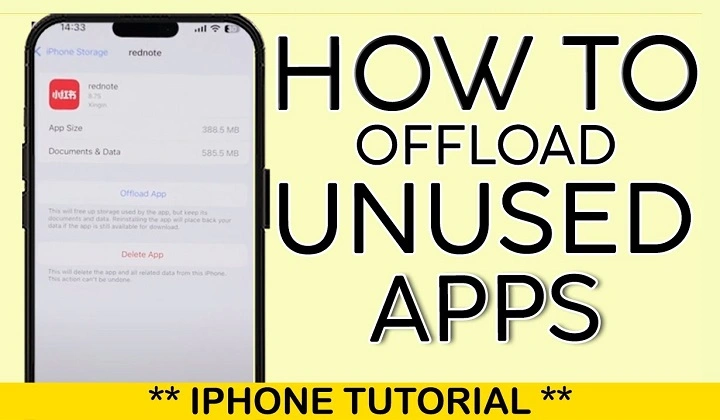
Not having enough space is one of the most common complaints for smartphone owners today. Photos, videos, apps and cache data gradually take up space in our phone; sometime we notice it while other time it is ignored. Suffice storage and you will notice the slowness or updates failure. Thankfully modern gadgets have a nifty alternative called app offloading. If you’ve ever wondered why and how to offload an app — or what it even does in the first place — we have put together a guide to help you learn everything you need to know.
By offloading an app, this gives you the option to delete the app and still keep its data stored on your device. So you can clear out invaluable space without deleting your favorite apps, photos and videos, music or anything else. In this post, we will show you what App Offloading is and how it works as well as how to offload apps step by step and when should you do that with your device.
What Is Offloading an App?
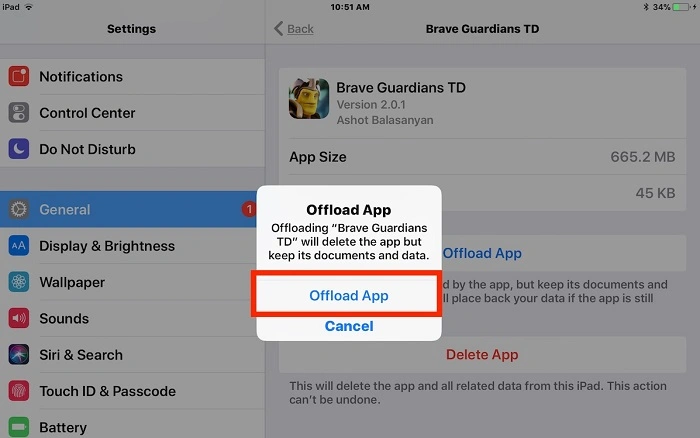
What is offloading apps? Unlike deleting an app outright, offloading will scrub the app’s core files while preserving its documents and preferences settings. And the app picks up where you left off when you reinstall it later.
This is particularly handy for apps that you don’t open all that often, but still wish to retain data on—a travel app you move in and out of, a game with saved progress or work-related utilities you access from time to time.
How App Offloading Works in the Background
This is why when you delete an application, it only removes the app’s main executable files from local storage. It also saves users’ information like login details, their preferences and the content they save.
Its icon usually stays on your home screen with a little cloud to indicate that it is in the cloud. This icon is a bookmark, install it at any time to reinstall the application.
Why Offloading Apps Is Useful
App offloading strikes a balance between storage and convenience. It’s to quickly free space from everything, without playing with data risk. Unlike the normally deleted app, the offloaded one is restored after reinstalling.
It’s useful to offload if you’re the type of user that prefer your home screen to stay clean without having to constantly reinstall and re-setup apps again.
How to Offload an App on iPhone
IPhones have app offloading built right into the operating system. To manually offload an app, you go into your device’s settings and then choose the storage category. There, you will have the option to see which apps are installed in order, based on how much space they take up.
When you pick an app, the option is provided for either offloading or deleting it. Once verified, the app is uninstalled and its data persists. And the introduction and usage is fast – doesn’t even need to connect to Internet unless you want to reinstall.
Automatic App Offloading on iPhone
There’s also an automatic offloading feature from Apple. With this enabled, unnecessary apps will be fluttered away by the system when space is tight. This occurs in the background and favors apps that have not been used for a long time.
Automatic offloading is perfect for those who don’t want to think about managing storage. And it makes sure your device is not constantly peeing when it shouldn’t.
Also Read: Is Cleanup App Safe?
How to Offload an App on Android
The word “offload” does not exist in Android as it does iOS, but the feature is there. A few Android variants let you disable it or clear its data without doing the same for the app.
Also, the newer variants of Android, including custom manufacturer skins, may provide for optimizing storage by decluttering unnecessary components which are part of an app but kept aside to retain user data. Exact process differs between devices and Android versions.
Offloading vs Deleting an App
It’s important to know the difference between offloading and deleting. When you delete an app, you remove both the app and its data. It would be a fresh start, meaning you’d need to log in all over again and adjust settings.
Offloading, by contrast, leaves your data in place. This makes it a safer choice if you’re in doubt whether the app will be needed again in the future.
Does Offload App Affect App Data and Settings?
Data retention: One of the greatest benefits of offloading. Documents, user settings and progress are all stored locally. Once you have reinstalled the offloaded app, it looks as if nothing changed.
But with offloading, you won’t save data that exists only on external servers – unless the app itself has its own cloud service syncing. Usually, using offloading together with cloud backups provides as much protection as possible.
When to Uninstall an App
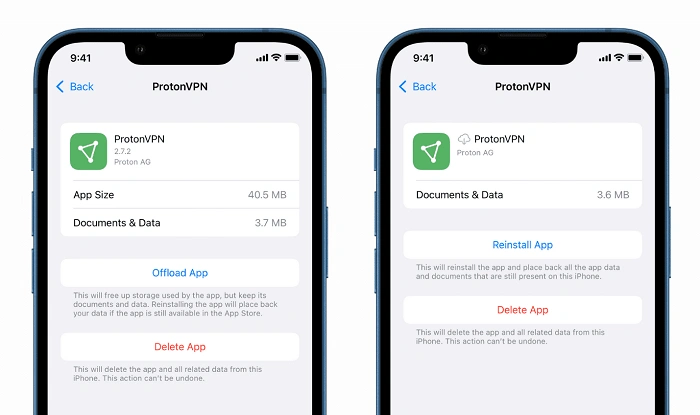
Offloading is a great option for when you are running low on storage but still don’t want to delete apps permanently. This is particularly helpful before system updates, travel or downloading big files.
All those apps that hog space but are hardly ever used would be ideal for offloading.
What to Do When You Can’t Offload
This won’t be helpful for your daily use apps or those with super small storage footprints. The reduction in space on such an occasion may be slight.
And also, if you don’t want an app or its data at all anymore, straight-up deleting it is another option.
Common Concerns About Offloading Apps
Some users are concerned that offloading may break app functionality or interfere with data. Offloading is actually a secure feature in the system to help mitigate against this exact problem.
Another concern is internet access. Also, to reinstall an offloaded app, you need to be connected to the Internet — which means that offloading might not work well if your only connectivity is a spotty cellular signal.
Frequently Asked Questions (FAQs) About How To Offload App
What does offloading an app do?
The app is uninstalled, but still exists in the data and settings on your device.
Will I lose my app data if I offload it?
What? No, you don’t lose your data and user files when you reinstall an app.
Can I offload apps automatically?
Yes, iPhones do have an option to automatically offload unused apps.
Is offloading the same as deleting?
No, deleting gets rid of the app and data along with it, while offloading maintains your data.
Is the internet required to reinstall an offloaded app?
Yes, you will need access to internet to re-download the app.
Final Thoughts
Shifting apps is one of the slickest ways to give you more space without cramping your style. It’s a flexible option for users with data want to make more room, preserving their vital information in the process. Here’s a primer on offloading for those who want to know how it works and when to use it, in order to keep the device experience smoother and more organized.
Regardless of whether you’re getting ready for a system update, trying to free up space on your device or just looking to better organize what apps are in use, offloading can be a safe and effective method. With a few taps you can free up some space and extract peace and mind without removing things that you care of.