


Smartphones are integrating more and more into our daily lives, but kids don’t need unlimited access to apps. Many iPhone and iPad users share the same fear — kids downloading age-inappropriate apps or too much mobile internet being used for one reason or another. Apple knows this is an issue and offers its own built-in tools to limit access to the App Store.
That’s why knowing how to block apps in the App Store is essential for parents, teachers and even people who want to have better control of their screen time. The Apple ecosystem doesn’t permit the permanent removal of the App Store itself, but it does provide strong restrictions through Screen Time and content-blocking tools. Used properly, these features can effectively block all app downloads or limit them by age, type of content or hours spent using the device.
This guide will break down everything you need to know about blocking apps on the App Store, from why it matters and how those Apple restrictions apply, to exactly what steps to follow, some common mistakes to avoid, and a few strategies for long-term control at your fingertips.
What Is “Blocking Apps on the App Store” Really?
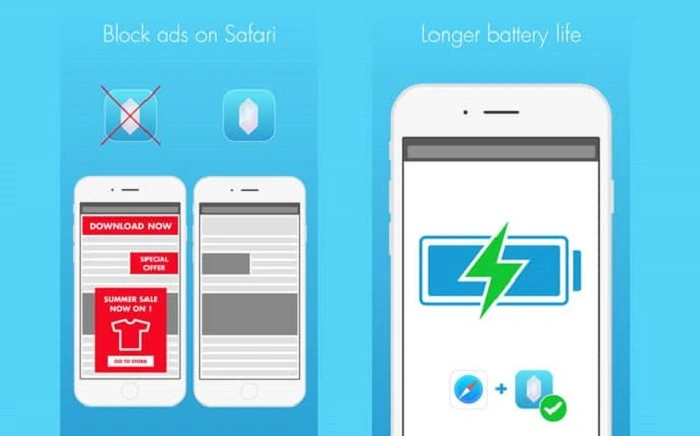
Blocking apps on App Store doesn’t equate to deleting the App Store from your device forever. Instead, it’s all about limiting people from downloading, installing or buying apps with Apple’s built-in parental control and device management functions.
Apple offers options to disable downloads for all apps, prevent in-app purchases, blacklist specific groups of apps and curtail access based on the age ratings that app developers assign. These controls are actually part of the Screen Time feature, which was also designed to help people grasp their relationship with their devices.
Why You May Want to Block the Apps on App Store
One of the most used reasons is related to parental control. Oftentimes parents also want to block inappropriate apps, games with violent content and apps that include chat features and advertising.
Another major reason is productivity. Given this, many adults restrict downloading of apps to prevent being interrupted or distracted (especially during work hours). Browsing on social media and gaming apps can easily destruct focus and productivity.
There are also the financial implications. So, it can be annoying or embarrassing if a kid makes an accidental in-app purchase, or even downloads a paid app without permission. Apps Blocker Apps can be avoided, preventing any of these situations.
Occasionally, users are suspending apps in order to break their phone reliance and take back control of their digital habits.
Understanding Apple’s Screen Time Feature
Screen Time is the main system Apple uses to manage how much time you spend using apps and restrictions that can put in place. It offers comprehensive reports on application usage and the ability to impose limits and blocks.
On iPhone, iPad and even Mac when using the same Apple ID. These is especially effective for families who use Apple’s Family Sharing feature.
After you’ve enabled Screen Time, you can manage which apps are allowed to be downloaded, what kind of content can be accessed and even whether purchases must first receive an approval.
Also Read: How to Log Out of the Target App
How to Block App Downloads on the App Store With Screen Time
To fully block apps in the App Store, you must turn off app install functionality. That approach blocks all new apps from downloading.
First, launch the Settings app on your iPhone or iPad. Open the screen time and make sure it is on. If this is your first time setting up, please follow the on-screen instructions.
Now, tap on Content & Privacy Restrictions and toggle on the switch at the top. After that is activated, head over to iTunes & App Store Purchases. Here, you’ll find settings for app installation, uninstallation and in-app purchases.
Select “Don’t Allow” on Installing Apps. After doing this, the App Store will still be visible on the device, but users won’t be able to download or install any apps.
Prevent Access to App Store for Kids with Family Sharing
If you are managing a child’s device, this becomes even more effective thanks to Apple’s Family Sharing. Parents may control app access using Family Sharing from anywhere.
Once you’ve set up Family Sharing, open Screen Time and tap on your child’s name. From there, turn on Content & Privacy Restrictions and tinker with app settings just as you would on your own device.
You can also opt to enable Ask to Buy, which will ask parents’ permission before any app is downloaded — even a free one. This is handy if you want control without completely locking down the App Store.
Apps Deemed Too Old Blocking by Age Rating
POSSIBLE ALTERNATIVE: Instead of talking about blocking X- and R-rated apps, maybe talk about allowing age-appropriate apps. Apple will offer fine-grained control over app ratings per region.
In Screen Time, navigate to Content & Privacy Restrictions and tap on Apps. You will find choices such as 4+, 9+,12+ and17+. Choosing a category prevents apps rated higher than it from being downloaded or used.
So if you’re a parent looking for some flexibility and to ensure safety — it is the way.
Disable In-App Purchases and Paid Downloads
App downloads alone might not be sufficient, though. In-app purchases are still an issue if there is no restriction.
In iTunes & App Store Purchases you may turn off In-App Purchases. You can also prevent accidental charges by setting up a password for every purchase.
This method is frequently employed by parents and people seeking more complete financial management.
Can You Completely Hide or Remove the App Store?
You can’t remove the App Store app in iOS and it can’t be deleted permanently. But if you turn off the ability to install apps, the App Store has no utility.
On some iOS editions the App Store icon is becoming invisible with restrictions in place? And even if it’s still there, that will fail to download apps.
It’s by design, as Apple has the App store as a system app.
Typical Problems When You Block an App on the App-Store
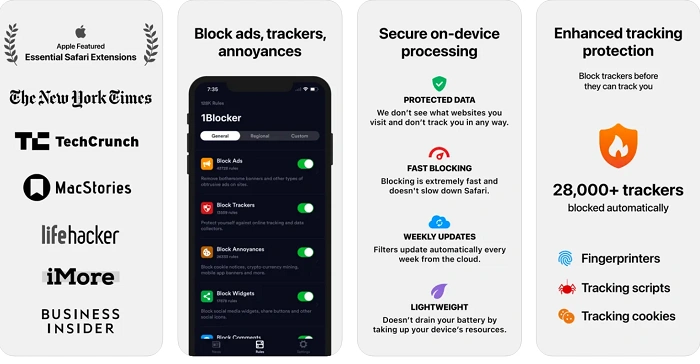
One of the most frequent problems is when you forget your Screen Time passcode. Without this you can not add or remove restrictions. Apple offers some recovery tools, but the process can take awhile.
Another problem is when limitations are not effectively synced between devices. This is commonly caused by the devices not being logged into the same Apple ID or Family Sharing not set up properly.
Some users also mistakenly block app downloads, but don’t uncheck the disable app deletion box which prevents downloading and re-downloading apps when restrictions are lifted later.
Optimal app control over the long term
For long term counts, use a strong Screen Time passcode not matching your device unlock. This does not allow easily bypass the same restriction.
Check Screen Time reports often to track app use and customize limitations accordingly.
If you’re managing a child’s device, make sure they understand the reasons for restrictions. Transparency prevents frustration and fosters good digital habits.
Frequently Asked Questions (FAQs) About How To Block Apps On App Store
Is it possible to block the App Store – without using Screen Time?
No, Screen Time is Apple’s first-line response to App Store controls and blocking.
Does it uninstall current apps if app installation is blocked?
No, disabling installations will only block new downloads. Apps are not automatically deleted from the device.
Are apps that are blocked still allowed to automatically update?
Yes app updates tend to still go through unless specifically disallowed in screen time settings.
Can I block the App Store just for now?
Yes, you can do this at anytime using a Screen Time passcode.
Will the App Store stop working on every iOS?
These features are supported in iOS for many years by now, but the names of menus and their layouts may differ a bit.
Curtailing apps in the App Store isn’t about curbing freedom though, it’s a way to help establish balance, safety and a measure of control in this digital world. Apple’s Screen Time utilities offer a plausible and flexible enough solution for managing application access, no third-party software needed.
Whether you’re a parent saving your child from exposure to harmful apps, a productivity-minded employee and you’d just like to cut down on distractions or somebody who wishes they could develop healthier screen habits, knowing how to block applications from the App Store can help. With the right preparation and ongoing maintenance, these controls can help make your device experience a more mindful and soothing one.