


Smartphones have become a part of our daily routine, and the iPhone is not left out. Whether for our social media and entertainment fix, or to do work or learning activities, apps are devouring so much of our time. Many people don’t realize just how much time they spend on certain applications each day. And that’s why it’s so crucial to know how to view app usage on iPhone.
Apple provides strong default tools to track app usage in precise details. They offer you a glimpse at your screen time, app activity, notifications and general phone use. Whether the aim is productivity, reduced distractions, ensuring that a child uses his or her phone responsibly or becoming more self-aware, knowing where to find and making sense of app usage information can help.
This guide will detail how to check app usage on iPhone, the way Screen Time works, Swipe issues and offer some tips for people looking to make a big change in your digital habits.
What ‘App Usage’ on iPhone Actually Means
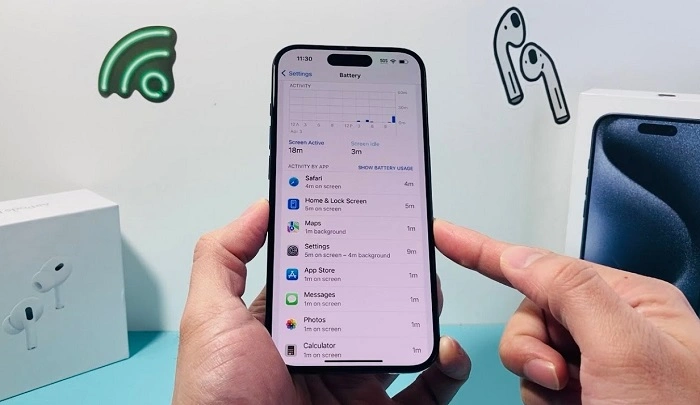
IPhone app usage means how many times you open and close an app, when and for how long. This takes into account the amount of time a person spends with each app, how often they open it, and information about whether an app sends lots of notifications or runs in the background. Apple bins all this intel in a feature it calls Screen Time, which includes a breakout of your daily and weekly minutes.
And through learning this data, you can recognize any patterns that might go unseen — be they a lot of phone pickups, an overindulgence in social media or silent apps running in the background and sapping your energy.
And Why Looking at App Usage on iPhone is Important
It’s not just curiosity that makes you want to monitor app use. It’s also pragmatic for tending to your digital life. A lot of people look at app usage to reduce screen time, focus better, manage data use or establish healthy limits for kids. Parents commonly rely on Screen Time to monitor how their children use devices, and professionals use it as a way to prevent distractions during business hours.
App time tracking also makes you aware of those apps that send too many notifications or need more attention than you wish to give them. Regularly checking your use allows you to think about which apps deserve your attention.
How iPhone Screen Time Works
Apple Screen Time is Apple’s own take on the activity tracking system. After being activated, it works in the background and gathers information about how a device is used. It logs activity in apps, on websites, and even in system-level features.
Screen Time refreshes itself and categorizes data into daily and weekly reports. These reports are readily available and will provide not only an overview, but a more detailed break out of usage.
Also Read: How to Uninstall an App on Roku
How to See App Usage on iPhone Using Screen Time
Before you can see app usage, however, you’ll have to open Screen Time through the Settings app. When you tap on Screen Time, it will open to a screen that displays an overview of your device’s activity. If you don’t already have Screen Time turned on, you’ll be prompted to enable it. After it is turned on, you can tap “See All Activity” to see specifics about your usage.
This section lists your daily or weekly total screen time along with a breakdown of the apps you’re spending the most time using. The figures are being updated for usage in real-time.
How Screen Time Reveals App Usage Details
Screen Time makes app usage quite digestable. At the top would be your total screen time, and below that are graphs to track how you are using. Below that, the apps appear in a list of the amount of time each has been used.
You can touch an individual app to get more information including background activity and notifications. This allows you to know not just for how long you use an app, but also how it interacts with you throughout the day.
Seeing Your App Use in a Day or Week
Screen Time has daily and weekly views that you can toggle between. It’s a feature you can use to spot long-term habits, and not just one day. We report weekly averages and focus on increases or decreases in volume.
When you compare different days, you’re able to determine if some habits only take place on weekends, workdays or your specific routines.
How to Check App Usage of a Particular App
And if you would like more detailed information about any one particular app, touch its name within the Screen Time list. This brings up a page that displays the time spent, number of pickups and notifications connected to the app.
This is where it comes in handy if you’ve been attempting to limit your screen time on a particular app, perhaps social media or games, and you’d like to see how well you have been doing over time.
iPhone App Use Tracking for Children
And for families with Family Sharing, Screen Time lets parents see what apps are being used on their child’s devices. Military parents can monitor activity, track the apps students use most and place restrictions on use if needed.
This capability is designed to help kids develop healthy screen time habits while also providing parents with the controls they need.
How to Set Boundaries Around App Usage
After you’ve examined app usage, you might want to limit particular apps. With Screen Time, you can set daily limits for particular apps or types of apps. Once the limit is up, access to the app is temporarily blocked unless bypassed.
This is particularly useful when dealing with distractions or simply trying to create healthy phone usage habits.
How to Monitor Mobile Data Usage Per App
The use of an app isn’t restricted only by time spent, it’s also restricted by the amount of data used. Operating System: With iPhone, you get to know how much mobile data does each app use. This information is found on the Cellular or Mobile Data section of Settings.
It will allow you to find the power hogs on your device and stop them in their tracks before they use your data.
Typical problems When Your Device Usage App is Not Showing up
At times, users will conclude that the Screen Time data is not available or incomplete. This sometimes happens when Screen Time is newly enabled or the device has been rebooted. The rest of the time it clears if I wait a couple hours.
(iCloud syncing delay might be another issue, particularly if you’re using a different iDevice with the same Apple ID.)
How to cut down on app usage after looking at data
Informed of your usage, cutting unnecessary screen time is easier. Even small changes like turning off unnecessary notifications, utilizing Focus modes and deleting unused apps can help slash daily usage.
Sounds like an improvement by itself, and users become more aware about how much and when they reach for their devices.
Privacy and App Usage Data
Your Screen Time information is kept private, and is synced via iCloud if you have it enabled. This information is not publicly disclosed by Apple. Users can also add a Screen Time passcode so others cannot see or change usage settings.
This way, the data of your app usage is kept private and secured.
Frequently Asked Questions (FAQ) About How To See App Usage On Iphone
Is Screen Time on iPhone accurate?
Screen Time is usually pretty accurate, but background activity and notifications can skew totals.
How can I check app usage without enabling Screen Time?
No, you do need to have Screen Time active to track app usage.
Can I use Screen Time to see usage across all apps?
Yes, it follows your every app and system action.
Is it possible to hide app data usage from other people?
Yes, with a Screen Time passcode and sharing turned off.
Does resetting iPhone delete app history?
Yes, a reset or the disabling of Screen Time will wipe usage data.
Final Thoughts
Learning to view app usage on iPhone will offer you useful insight into daily habits and the way that you engage with technology. Content usage managementScreen Time is a strong tool that will help users become more mindful, purposeful and balanced in how; an individual or family spends time on their devices.
If you’re trying to limit distractions, control a child’s screen time or just don’t want an app staking out your digital territory, the first step is reviewing app usage. With a little guidance and attention, your iPhone can be turned into an instrument of self-control that supports productivity and health rather than subverting them.
The first step to reducing it is understanding it, and Screen Time helps give you a snapshot of the time you spend on your devices.