



Many Windows users would get to a time that they would like to uninstall the PC App Store from their computer. To some, the app seems superfluous. Some have problems with performance, errors, unsuccessful downloads or they just prefer downloading applications directly from the official sites. However, not everyone is a real fan of the ‘PC App Store’ – generally called Microsoft/3rd party app stores.
How to Uninstall PC App StoreSometimes, it is not an easy removing process because deleting a program does not always completely remove it. In certain instances, either the hidden, or disabled attribute may be present when uninstalling is not an available option. In some cases, if you remove it wrong, your system could crash. In this guide we will explore how to remove the PC App Store from your computer without causing any problems, what options are available when removing it and what to be wary of in future, not forgetting clarifying some great alternatives you can continue using.
What Is the PC App Store?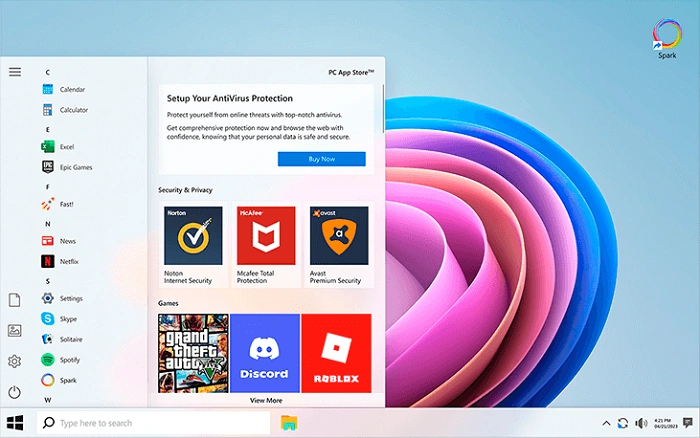
For most Windows PCs, the PC App Store is known as the Microsoft Store. It’s an integrated application that enables users to download apps, games, tools and system utilities in a restricted environment. Updates for some Windows apps and system components are downloaded by Microsoft Store.
Users may have third-party PC app stores as well if manufacturers or software bundles added one. They often advertise other sponsored apps, display ads or are just operating in the background and that causes many users to uninstall them.
It’s good to know which app store you’re using so that you can attempt to uninstall it.
Is It Possible to Remove the Microsoft Store?
Technically, yes—but with limitations. Microsoft doesn’t want you to uninstall the Microsoft Store because it’s a part of Windows. It is responsible for making some features, updates and apps work correctly. Consequently, Windows doesn’t offer an easy-uninstall button in its typical Apps & Features menu.
Third-party PC app stores, though, are just like any other application after downloading in that they can typically be uninstalled if you decide you don’t them.
Index: Why Do You Need to Uninstall PC App Store?
Here are some typical causes why users uninstall a PC App Store: Others simply thing it is wasting system resources. Some are annoyed by automatic updating or background activity. In the business area, administrators may decide to uninstall Flipboard so employees can’t install apps without permission.
There are also security concerns, particularly with third-party app stores that come bundled with unwanted software or intrusive advertisements.
Also Read: Google App vs Chrome
How to See What App Store You’ve Got
Before uninstalling anything, make sure you’re working with the Microsoft Store or a third-party app store. Scroll the Start menu to that app name. If you find one labeled “Microsoft Store,” it is a system app. Since it has a company name or publisher, it is probably 3rd-party software.
That difference will determine which method you can use to clear them out.
How to Remove a Third-Party PC App Store
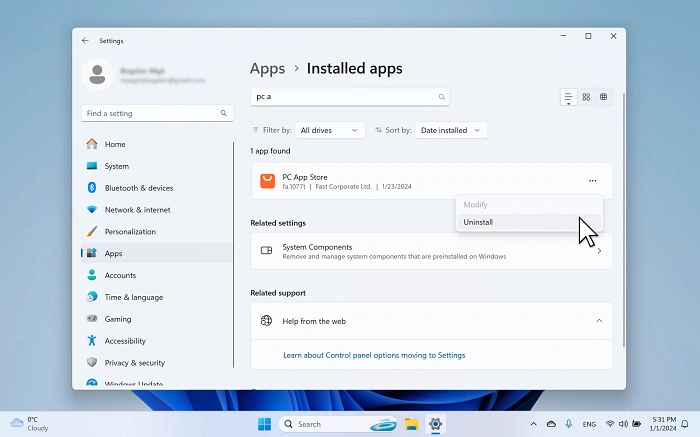
The procedure is typically straightforward for non-Microsoft app stores. Open Windows Settings, then select Apps. Locate the app store in the installed apps list and click it ad then you can Choose Uninstall. Click your next and it will start rebooting.
You might have to use a dedicated uninstaller or delete residual files manually if the app doesn’t get uninstalled cleanly, but do this very cautiously.
Uninstall Microsoft Store With PowerShell
Powershell is regularly used as Microsoft Store can’t be easily uninstalled through regular settings. This process is for advanced users and network administrators.
You need to open PowerShell as admin. Upon opening, there’s a command that can be used to uninstall the Microsoft Store package from your user account or all users. This reinstallation will UL the user interface, but it won’t put any Windows components in the trash.
Note: Windows updates in the future may restore Microsoft Store as well.
Disabling Microsoft Store Without Uninstalling
If you don’t want to remove Microsoft Store completely, then disabling it would be a more secure alternative. This is most useful for work or shared computers.
Through the Group Policy Editor or the Registry blocks, you can prevent access to the Microsoft Store while keeping it in your system. The system remains stable and compatible with updates, never downloading any apps.
Disabling is generally preferred to uninstallation for most users.
What Happens When You Uninstall PC App Store?
After you uninstall it, you won’t be able to download or update any apps through that store. Apps previously downloaded from any third-party store where the malicious AR apps were available will suddenly lose support or may not open.
Windows 10 built-in troubleshooting apps or optional system components might also be affected. That’s why uninstalling the Microsoft Store is not recommended unless you know what you’re doing.
How to Reinstall Microsoft Store If Necessary
But if you want to bring the Microsoft Store back, reinstalling it is an option. The app package can also be re-registered using PowerShell. With some system updates, or when you do a repair install, it will be reinstated automatically.
This facility enables expert users to have a “playground” environment without crashing the system.
Can I remove PC App Store safely?
It is generally safe to uninstall third-party app stores if you do not need them. Uninstalling the Microsoft Store does come with moderate risk, though. Although it typically doesn’t render Windows entirely unusable, it can cripple functionality and make updates a pain.
For the great majority of users this will be a safer thing than turning off or simply ignoring the store.
PC App Store Alternatives How to Download Apps There are a lot of apps available for download at PC App Store.
Even if you get rid of the app store, you can install software manually from official websites. This method is favored by many users, as it provides more control over versioning and installation paths.
If you have to maintain multiple systems, you can also use reliable package managers or enterprise deployment tools.
Common Issues during PC App Store uninstallation
Some have error messages when they’re trying to launch their system apps, see no update notifications or find that their app shortcuts are broken. Such problems are prevalent especially when the Microsoft Store is uninstalled in an improper manner.
Running the system checks or restoring the app usually fixes these issues.
Frequently Asked Question (FAQ) About How To Uninstall Pc App Store
Is it possible to remove the Microsoft Store from Windows 10 or 11?
Yes, but only and if you are using advance mechanism such as Power Shell. 7.) There is no normal option to uninstall in Windows.
Does uninstalling PC App Store speeds up computer?
Performance enhancement is in most cases minor, unless the store was misbehaving.
Is it better to turn off the Microsoft Store as opposed to uninstalling?
Yes, disabled is better and you won’t experience any compatibility issues with Windows updates.
Do Windows updates automatically reinstall the Microsoft Store?
Yes, big Windows updates might reinstall the Microsoft Store even after you uninstall it.
How do I get back the Microsoft Store if I uninstall it?
You can reinstall it with PowerShell commands, or with a system repair or update.
There might be some scenarios when you would like to uninstall PC App Store, most commonly, when it comes to inconsistent and unwanted third-party software. But the Microsoft Store shouldn’t be uninstalled willy-nilly due to its deeper integration with Windows. You should simply leave the store turned off if you want to avoid it altogether.
If you choose to remove it, make sure you know what the consequences are and have a way to get back. With the proper knowledge and mindful approach, you can keep your Windows domain cleaner and more tightly controlled by managing the PC App Store.