


Reading has been changed incredibly over the course of the last decade. And millions of readers now depend not only on physical books, but also digital formats for their daily reading. Kindle app is one of the most popular e-reading apps in the world and its devices are among the top selling ones. With more hours in front of their screens, readers are more aware than ever of eye comfort and battery management (especially when it gets late at night). This is where a dark mode kindle app feature has its significance.
Dark mode isn’t just a nice-to-have feature now, it’s a must-have for many people. If you’re reading at night, straining your eyes or just like something more muted, a dark mode for Kindle offers an improved experience. In this post, we will look at what Kindle app dark mode is all about and how to use it on various devices and apps along with benefits, drawbacks, the most common issues you may experience while using Kindle in dark mode.
What Is Dark Mode on the Kindle App?
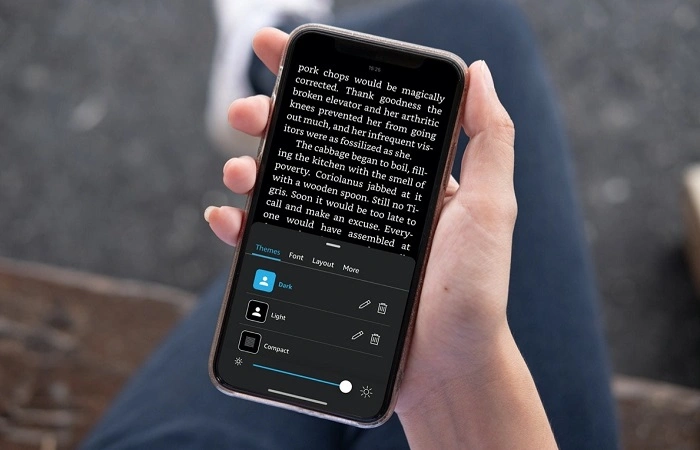
The dark mode in the Kindle app however, is a display setting that reverses the default color. Rather than showing black text on a white background, dark mode presents light-colored text on a dark background. This will help in damping down the screen’s brightness and glare, which can be hard on your eyes in low-light settings.
What sets kindle’s feature apart from simple theme switching is that this dark mode has been tailor made to be easy on the eye for those long reading sessions. It modifies contrast, background tone, and text clearness to keep readability at an optimum level, and thus reduce eye fatigue. That makes it distinguishable from the generic dark themes available on a great deal of handsets.
Why Dark Mode is Important For Readers
The reading on screen is usually for a long time. Bright screens can create discomfort, dryness and fatigue especially when used at night. Dark mode helps to mitigate these issues by reducing the visual intensity of our screens.
Dark mode is available for readers who prefer to read before sleep. It won’t diagnose your sleep problems, but it may make reading a bit more comfortable in the dark. Also, it’s easier on the eyes for users who are sensitive to light.
The efficiency of the battery is another advantage in practice. For OLED and AMOLED displays, using dark mode can help you conserve power since darker pixels require less energy. This makes dark mode particularly good for folks who read a lot on their phones or tablets.
Also Read: How to See App Usage on iPhone
How Dark Mode Works in the Kindle App
The Kindle app’s dark mode is more than just cosmetic. It’s invasive over the reading interface yet always keep some informations as page numbers, highlights and bookmarks. The app modulates contrast to keep text sharp, without being harsh on your eyes.
Dark Themes are decoupled from font size, and actual fonts. This way you can just enjoy dark mode with any font style, spacing or margin setting that works for you. This feature is seamlessly embedded in Kindle’s rhythm and guided controls, enabling readers to customize their experience even more.
How to Turn on Dark Mode in the Kindle App
How to turn on dark mode in the Kindle app The process for enabling dark mode in the Kindle app is straightforward, though it might look a touch different based on the device you’re using.
On Android devices, open the Kindle app and tap on any book to go into reading mode. Touch the middle of the screen to open the reading toolbar. Under display settings, open Dark background style. The change applies instantly.
This works the same way on iPhone as it does on iPad. Open a book, tap the screen, open display settings and select the dark theme. On some iOS versions Kindle will follow the system-wide dark setting mode if set.
For Kindle Fire tablets, dark mode is available in the reading settings and might vary depending on your Fire OS version.
Dark Mode vs Night Mode in Kindle Note: Will Dark mode (or) night mode harm your eyes?
Dark mode is confused with night mode by a lot of the users. Both are designed to help with nighttime reading but they’re not the same. Dark mode alters the palette of colors you see in a browser, and night mode usually minimizes how much blue light your screen emits along with some warming up.
The Kindle app offers options for pairing dark mode with settings like brightness and font. But real blue light filtering has more to do with device-level settings than the app itself.
Advantages of Dark Mode in the Kindle App
Less eye strain for low-light reading is one of the major benefits of dark mode. The dark background reduces glare and distracting bright spots in your eyes.
Another benefit is improved focus. A number of readers tell us that they like dark mode because it allows them to focus on reading without other visual distractions. The darker setup is known to make the reading atmosphere more pleasant.
There is also an advantage that dark mode is much easier to read in public. It emits less light in dark mode so is less likely to wake someone sleeping if you read at night.
Aesthetically, dark mode makes the Kindle app look modern and sleek. So, most people just like the way they look.
Dark mode limitations and disadvantages
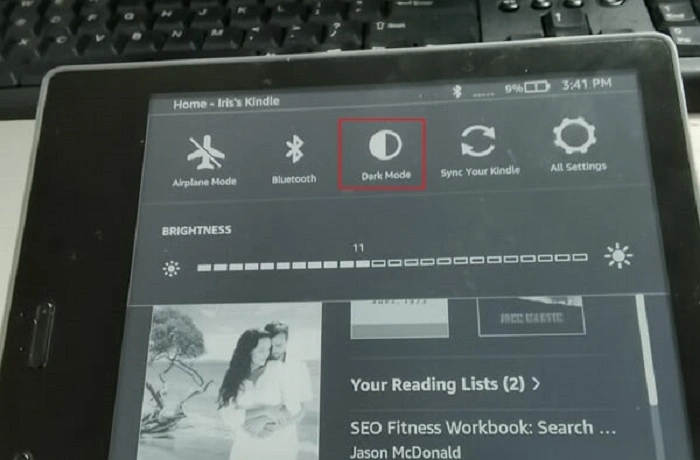
As many have found, dark mode, while popular and inarguably beneficial for some people, isn’t a one-size fits-all option. Light text on a dark background causes strain, even more so at day time. Some readers are not comfortable with light text on dark background; the issue is demanded to be solved somehow.
In some cases, dark mode could be harder to read than light mode with sufficient brightness. This can lead to readers turning brightness up, which can negate some of the potential benefits.
Finally, not all generations of the Kindle app support dark mode as smoothly as others. Some contrasting or undesired display behavior can happen on legacy devices or older app versions.
Dark Mode Problems with the Kindle App
Few are saying they can’t even turn on the Dark Mode after selecting it. This typically occurs with older app versions or the device itself.
Another frequently heard gripe is the lack of uniform background color between books. That usually goes away after you close the app and reopen or start another book.
Some users also report that images within books are not as clear in dark mode. This is because images are imprinted over Darker background that are not very customizable.
How to Get the Most Out of Dark Mode Reading
(To really get the most out of dark mode, manually adjust screen brightness rather than relying solely on auto-brightness.) A dimmer setting, paired with dark mode is likely the most easy on the eyes.
Font choice also makes a difference. Sans-serif fonts are also generally cleaner in dark mode, however this is something to your liking.
If you read in both day and night conditions often, try to use dark mode only when applicable, versus leaving it on all the time.
Is Dark Mode Right for Everyone?
Dark mode is highly subjective. Many, of course, swear by it — but some others just want the old way back. The benefits of dark mode vary based on eyesight, lighting and reading duration, among other factors.
The good news is that with Kindle’s app, it can be easy to switch back and forth between modes — which means it’s easy to experiment, see what feels best and find the most effective mode for you.
Frequently Asked Questions (FAQs) About Dark Mode Kindle App
Does the dark mode work on all Kindle apps?
Most updated versions of the Kindle app will have dark mode, though availability may vary based on your device and OS.
Does dark mode save battery?
For example, on devices that have OLED or AMOLED screens, dark mode can save battery life. On LCDs, it doesn’t matter so much.
Can I schedule dark mode to go on automatically?
The Kindle app’s built-in scheduling is no good, but system-level dark mode settings might change the app.
Does dark mode actually minimize eye strain?
While dark mode lowers glare and brightness, it does not remove eye strain. Good lighting and breaks are still key.
Dark Reader works with any Kindle book?
Yes, it works for the most part with dark mode on Kindle books as long as our books have fairly large paragraphs of text per page and aren’t image-heavy.
The Kindle app dark mode isn’t just about any visual shift, either. It is an example of a refreshing but carefully considered angle on reader convenience in the digital access ages. With Kindle, readers can become architects of the reading experience at various levels–from fine-grained typographic control to overall book compared to hamburger menus.
Dark mode may not be the best for every situation or reader, but its versatility makes it a very welcome addition. Whether you are a late-night reader, sensitive to bright screens or just prefer darker interfaces, it is worth giving dark mode a shot. The smooth transition means that you, the reader, are always in control of how your journey unfolds.