


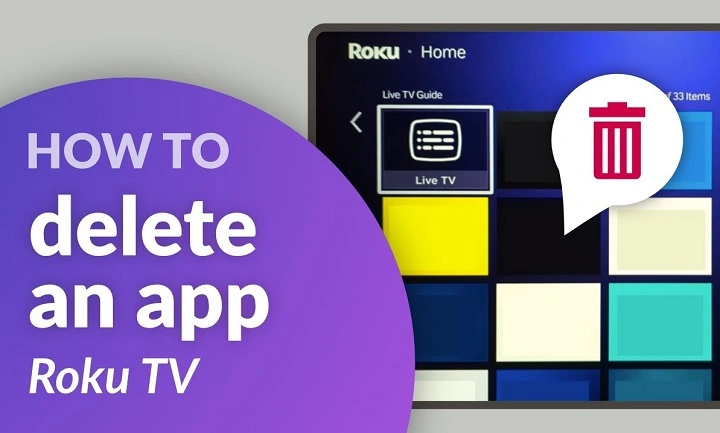
Roku devices are an increasingly popular way to stream movies, TV shows and sports, but not everyone realizes that because it’s essentially plugs-and-play easy (at least once you set up your subscription services), and there is no straight-talking how-to guide when you unbox the thing. Because you have access to thousands of streaming apps (which Roku calls “channels”), it’s easy to load your device with stuff. But eventually, you may find that your Roku home screen gets messy, performance lags or that you don’t even use some of those apps anymore.
That makes a lot of users wondering, “Can you delete an app on Roku?”
It’s easy to delete apps on Roku once you understand where you should look, though it’s not quite as simple as it is on your phone or smart TV. In this complete guide, we will discuss how to actually delete an app (channel) on Roku, what happens when you do remove it and subscribe, and what is the best way for you to manage your Roku device.
What Does Deleting an App on Roku Mean?
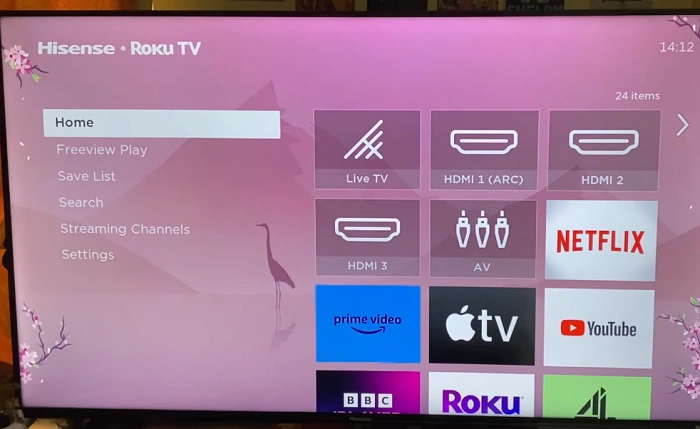
Roku officially refers to channels as apps. Uninstalling an app will remove that channel off your Roku device so that it not only does not show on your home screen but also no longer consumes resources in the system.
When you delete an app on Roku:
- The channel is uninstalled off of your device.
- Temporary and cache data are wiped out.
- The application will not update or run anymore.
- It will not be opened until reinstalled.
Noteworthy, not all subscriptions get canceled when a Roku app is deleted, a fact that many consumers do not understand.
The possible reasons why you would need to delete an app on Roku.
Users have a number of reasons that commonly make them remove apps off Roku:
- Releasing home screen space.
- Increasing the Roku performance and speed.
- Eliminating unutilized or obsolete channels.
- Problem solving: crash or loading of applications.
- Parental control or control of content.
- Simplifying navigation
Uninstalling the apps that you do not need makes your Roku screen clean, fast, and user-friendly.
How to Uninstall an App on Roku with the Remote.
It is the simplest and most widespread way.
Step-by-Step Instructions
- Switch on your Roku and television.
- Press the Roku remote button, Home.
- Go to the application to be deleted.
- Point on the app but do not open.
- Press your remote button, the Star (*).
- Select Remove channel
- Make sure by choosing the option of Remove.
The application will be automatically deleted on your Roku home page.
Roku Delete an App in Settings.
In case the remote shortcut is not functioning or you would like to do things via settings, then you can remove the applications in this manner.
Steps
- Press the Home button
- Go to Settings
- Select Apps
- Choose Installed apps
- Click on the application to be deleted.
- Click Remove app
- Confirm removal
This can be used when dealing with several applications simultaneously.
Also Read: Mango Display App
How to Delete Roku Apps on Roku Web Site.
You are also able to access the Roku apps remotely through the use of your Roku account online.
Steps
- Get a web browser and log in to the Roku account.
- Go to your Account Dashboard
- Click on My linked devices.
- Select Manage channels
- Locate the application that you wish to get rid of.
- Click Remove channel
The application will be deleted on all Roku devices associated with such an account.
What Does Roku Do When You Delete an App?
This is a very important aspect that is not taken seriously by many users.
Subscriptions are not automatically canceled when an app is deleted. In case you had subscribed to a service using Roku billing, the subscription remains active despite the process of dropping the channel.
To cancel a subscription:
- Access Roku accounts on the Internet.
- Choice Manage subscriptions.
- Search for the active subscription.
- Choose Cancel subscription
Cancellation should never be done in a bundle to prevent unnecessary costs.
What Will Be the Effect of Re-installing a Deleted Roku Application?
It is not difficult to reinstall a Roku application.
When you reinstall:
- The application goes back to the home screen.
- You may need to sign in again
- Favorite preferences can be reinstated.
- Access to subscription is restored upon being active.
Deletion and reinstatement of apps do not attract punishment.
Is it possible to uninstall inbuilt Roku applications?
There are Roku devices that have pre-installed channels.
- The majority of preinstalled applications can be deleted.
- There are several system-level channels which can not be removed.
- The apps that cannot be removed do not have a Remove option.
When the app does not display a remove option, most likely it is an essential channel in the system.
Is Deleting Apps the Solution to Roku Performance?
Yes, it is possible to uninstall the unused apps:
- Cutdown on the background processes.
- Speed up navigation
- Resolve the problem of freezing or crashing.
- Enhance responsiveness in general.
Although Roku devices are not very easy to run out of storage, the fewer the apps the better the performance.
Uninstalling Applications vs. Roku Reset.
Deleting apps:
- Eliminates personal channels.
- Saves environment and preferences.
- Safe and reversible
- Factory resetting Roku:
- Deletes all apps and data
- Reboots the device.
- Requires re-login and setup
In case the problem with the performance remains even after the removal of apps, a factory reset can be viewed as the last measure.
General Issues Deleting Roku Apps.
In some cases there are problems that a user may encounter, these may include:
- Absence of the remove channel option.
- Repeat the app after re-Boot.
- Subscription still active
- Failure to uninstall the app appropriately.
A majority of these are solvable by rebooting the Roku device or by uninstalling the app using the Roku webpage.
Best Practices in Roku App management.
- Periodically check up the apps installed.
- Eliminate channels that are no longer in use.
- Stop subscriptions that are not used.
- Reboot Roku with significant changes.
- Keep software updated
App management will make the streaming more fluent.
Are You and Other users visible with the deletion of an App on Roku?
No. Removing the apps is device and account-private.
Other users cannot see:
- Which apps you delete
- When you remove them
- What channels you use
Nonetheless, members of a home can observe the changes on the home screen.
Frequently Asked Questions (FAQ)
Will deleting a Roku app also cancel your subscription?
No. You will need to cancel your subscriptions through your Roku account independently.
Can I restore a Roku app after deleting it?
Yes. You can re-download any deleted app from the Roku Channel Store.
Why is it that I can’t delete certain Roku apps?
Some of these are at the system (device) level and thus cannot be removed.
Does removing apps free up space on Roku?
Yes, it does remove cached data and help performance.
How do I delete apps on my Roku without the remote?
Yes. Apps can be deleted through your Roku account on the web.
Final Thoughts
Figuring out how to delete an app on Roku can be essential part of maintaining your streaming experience. If you are trying to clean up your home screen, address a performance issue or get rid of idle channels, there is a fast and easy way to delete apps—no need to panic.
Just keep in mind that deleting the app doesn’t cancel subscriptions automatically — always manage billing separately to avoid surprises. With the right app hygiene and clever subscription management, your Roku should remain a smooth-running system you love using.
We’re not taking away apps to limit the range of streaming options, but to make the overall premium TV experience easier and more personalized than ever.