


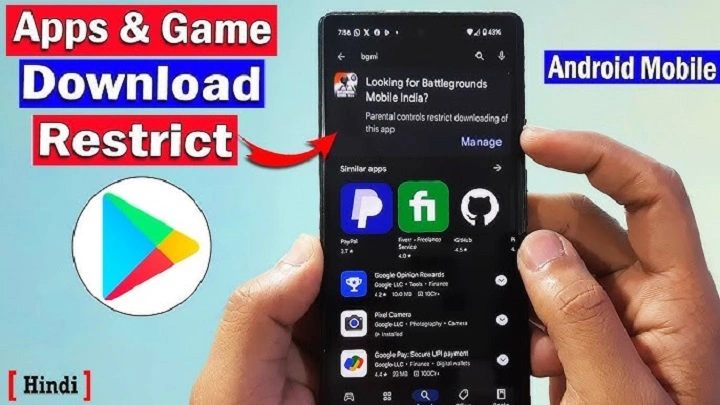
Smart phones are now integral to most of our daily lives, and apps help us work more efficiently, stay organized, and better connect with the world around us. Whether you want to cut down on distractions, block the kiddos from getting into something they shouldn’t, or restrict yourself — there are a few ways to block an app on your device we’re going to go over today.
On the Android devices, you can use various native and third-party tools to restrict apps based on the device manufacturer, version of Android OS that it is running and the necessity. This in-depth guide covers every possible method to block apps on Android, whether through native features like system settings and Digital Wellbeing, or with third-party tools or advanced measures.
What Does Blocking an App on Android Mean?
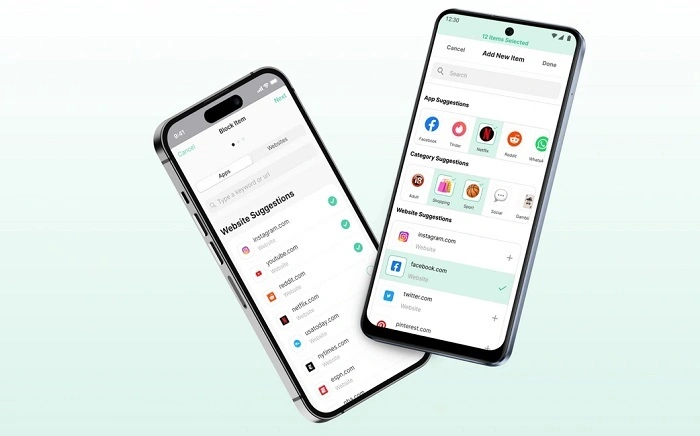
Not allowing an application may imply various things depending upon your intention:
- Blocking the entry of an application.
- Restricting app usage time
- Blocking the use of an app on the internet.
- Determining password or fingerprint lock on an app.
- Hiding an app completely
All these options can be achieved with the help of Android in various features and tools.
Reasons Why You Would Like to Block an App.
Individuals will block applications due to several reasons:
- Minimizing time on the screen and addiction.
- Banning games or social media by children.
- Securing access to sensitive apps.
- Improving productivity
- Steering clear of the use of background information.
Blocking applications is one way of reclaiming your phone usage.
block an App with the help of Digital Wellbeing.
Digital Wellbeing is available on most current Android phones and allows the user to restrict or block use of apps.
How to block an App using Digital Wellbeing.
- Access Manage on your Android phone.
- Tap Parental Control & Digital Wellbeing.
- Select Dashboard
- Select the app you are going to block.
- Tap App timer
- Set the timer to 0 minutes
When the time runs out, the application will not be usable until the following day.
Best For
- Limiting daily usage
- Blocking time-wasting apps
- Personal discipline and activity.
Also Read: What Happens If I Delete Instagram App
Blocking an Application with App lock (Inbuilt Feature)
There are Android brands such as Samsung, Xiaomi, Vivo and Oppo, which provide in-built App Lock features.
How to Use App Lock
- Go to Settings
- Search for App Lock
- Enable App Lock
- Select the app you are going to block.
- Select a PIN, password or fingerprint.
The application will be kept installed and cannot be opened without authentication.
Best For
- Privacy protection
- Household registration of applications in children.
- Securing personal apps
Parental Controls of the App by blocking it.
Google Family Link offers parental control services over Android.
How to Block Applications using Family Link.
- Install Google Family Link
- Link your child’s account
- Open the Family Link app
- Select the child’s profile
- Choose App activity
- Block/ restrict certain applications.
This approach is the one that provides total control over the use of apps and their downloads.
Best For
- Child safety
- Educational control
- Monitoring app behavior
Block an App with the third-party app blockers.
There are a number of trusted third party applications that have sophisticated app blocking.
Shared Effects of App Blockers.
- App locking
- Scheduled blocking
- Focus modes
- Password protection
- Usage analytics
- How It Works
- Download an app blocker
- Grant required permissions
- Select apps to block
- Establish time constraints or time blocks.
These tools provide the flexibility outside of system settings.
Best For
- Deep customization
- Work or study focus
- Habit control
Blocking an App through Disabling it.
In the case of the app being a system or a pre-installed app, then you can disable it.
Steps to Disable an App
- Go to Settings
- Tap Apps
- Select the app
- Tap Disable
The application will stop working and will not be visible in the application list.
Best For
- Blocking bloatware
- Background activity should be prevented.
Block Application Internat.
Blocking out the internet blocks the functionality of an app.
How to Block Data Access
- Open Settings
- Go to Apps
- Select the app
- Tap Mobile data & Wi-Fi
- Disable data access
This technique can be applied when it comes to the apps that are dependent on the use of the internet.
Block Application with Secure Folder or Second Space.
There are Android phones that provide Secure Folder or Second space.
- Applications that are installed within these areas are to be authenticated.
- Outside Apps are not available.
This brings a distinction between personal and restricted applications.
Blocking Applications through Deleting Permissions.
It is possible to block applications by removing permissions.
Steps
- Open Settings
- Go to Apps
- Select the app
- Tap Permissions
- Deny necessary privileges.
Most apps cannot even be used without permissions.
What to Confess Before Blocking an App.
Whitelisting Before blocking an application, consider:
- Will it have an impact on the phone performance?
- Is the app a necessity to system functions?
- Should it be temporary or permanent blocking?
- Should data be preserved?
Blocking needs to match with your long term usage objectives.
Issues When Blocking Apps.
Users may face issues such as:
- Turning on app re-enabling automatically.
- Blocked apps with notification messages.
- App lock being bypassed
- Conflicts of battery optimization.
Most of the problems can be avoided by updating your phone.
On blocking Apps Productivity.
Unproductivity in apps can be blocked effectively.
- Reduces distractions
- Encourages focused work
- Improves screen habits
- Supports digital wellness
App blocking is important to many professionals to remain efficient.
Blocking Apps Child Safety.
To make sure that the use of the phone is safe, parents can block:
- Social media apps
- Gaming apps
- Adult content apps
- In-app purchases
In this situation, parental control tools are needed.
Blocking Apps And Not Uninstalling.
It is better to block rather than to uninstall as:
- App data remains safe
- Easy to re-enable
- Restriction that can be temporary.
This is perfect with applications that are required on a regular basis.
Frequently Asked Questions (FAQ) About How To Block An App On Android
How can I permanently block an app on Android?
Yes, it’s possible to permanently block apps using app lock tools or parental controls.
If you block an app does it erase data?
No blocking does not erase the app data unless you use uninstall.
Can blocked services still notify you?
Unless notification is turned off, some applications would send notifications.
Need for rooting to block apps?
Not really, most app blocking techniques do not require a rooted device.
How can I safely block apps for kids?
The best and safest solution is to use Google Family Link.
Final Thoughts
Here’s how to block an app on Android so you can have more control over your device, time and digital habits. On Android, you have a choice – doing everything that Digital Wellbeing offers out of the box or taking things even a step further with third-party options.
Preventing certain apps isn’t taking away your freedom, it’s giving you the means to use technology intentionally. App blocking, whether you want to concentrate on your work, shield personal information or set up a safer place for kids, is an easy and effective possibility.
With it, you can turn your Android phone into a cell data command center that works for — not against — you.