


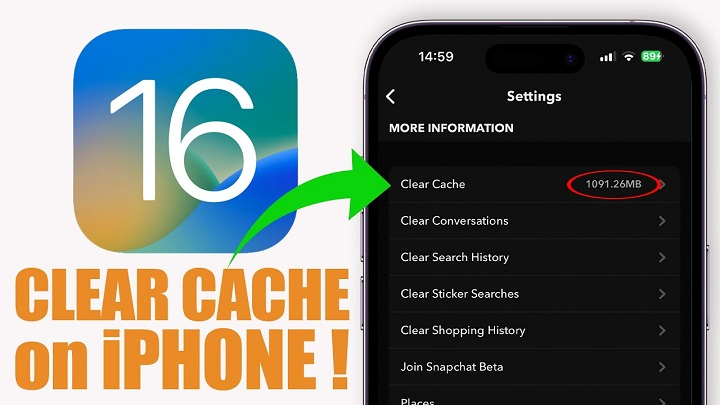
iPhones are the epitome of reliable performance, but just like everything that is consistently so good, your iPhone can get slow overtime. One of the most frequent reasons for sluggish apps, space running out, or weird app behavior is stored cache data. Plenty of it is where users have seen apps take up far more space than they should, load (or crash) with unbearably slow sluggishness or otherwise make poor use of a device’s memory. However, these problems can often be fixed by clearing the app cache.
Unlike Android, there is no “clear cache” button for all apps in iOS and that leads to some confusion. But there are other safe and effective methods to clear cache on your iPhone apps without causing any harm to your data or iPhone. This article explains what app cache is, why it becomes bloated and how you can clear it on an iPhone correctly.
What Is App Cache on iPhone?
App cache is a temporary data that apps use to open quickly and more efficiently. This may be in the form of images, videos, signed-in sessions and search history, as well as other temporary files. For example, social media apps cache images you’ve already seen so they don’t have to download them repeatedly.
Cache increases the short term performance at the expense of very high incremental growth. When cache files are outdated or corrupted, they can slow down apps, make them freeze and even show you incorrect information.
Importance Of Clear Cache On iPhone Apps
Clearing the cache can free up space, boost performance and resolve issues when apps refuse to load. Apps that are shockingly many gigabytes in size, even though they shouldn’t be more than a few hundred megabytes. This additional space is usually just cached data.
Cleaning cache is particularly helpful for apps that crashes a lot, freezes up the app constantly, fails to load media or take time to buffer media, overheats there devices and uses a higher than usual battery. It might also be something to try when your iPhone gives you low storage warnings.
Why iPHone Doesn’t a Clear Cache Button
Apple values simplicity and security, which is the reason iOS takes care of cache on its own in most circumstances. The system deletes a variety of temporary files when storage is in short supply or when other applications need the space. But on its own, this automatic mechanism ain’t always enough.
Since iOS limits access to app data, you‘ll have to juggle things to clear the cache without a dedicated feature as on Android (for example with activating the option or clearing cache when deleting apps).
How to Monitor App Cache Usage on iPhone

Before you clear cache, it’s good to know which apps are using the most chunk of storage. iOS will split out app size vs. documents and data in an itemized list below.
You can see which apps are using the most amount of cached data and decide whether you want to clean it up. The apps that consume the most cache are your social media apps, streaming applications and browsers.
How to Reset Cache on iPhone Apps without Losing Data
Some apps have an option to clear cache in their settings. Web browsers like Safari and apps that include YouTube, Spotify or TikTok could have options to empty the cache from their settings menu. It’s the safest method as it clears temporary files, but leaves your account and app data intact.
But not all apps offer this, and that’s why alternate options are needed.
Clearing Safari Cache on iPhone
Safari is among the most frequently used apps on iPhone and it has a large cache. Your browsing experience would be much better if you emptied your cache.
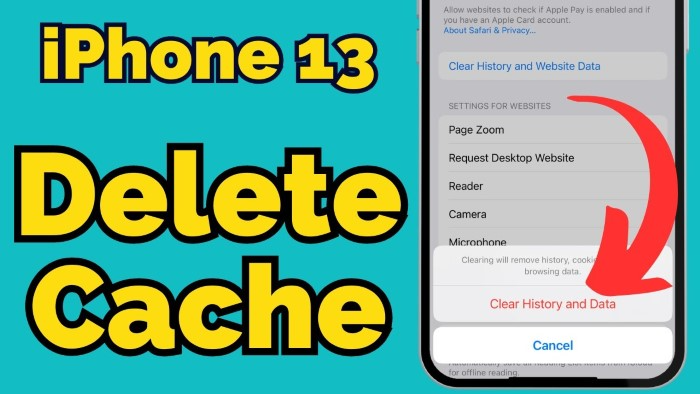
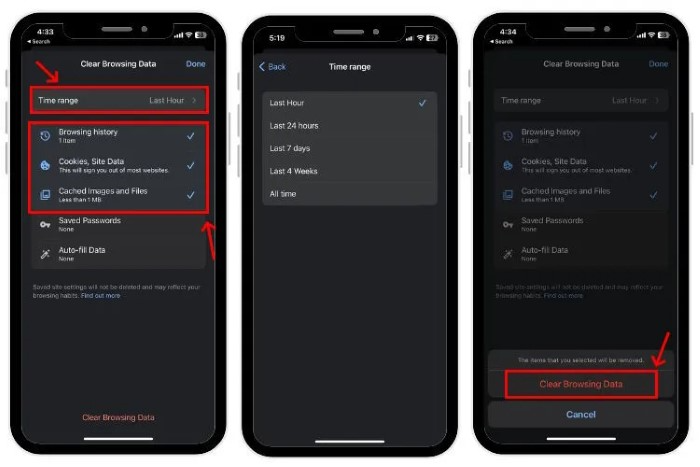
Resetting Safari browser cache will delete the history, cookies, and other browsing data. This could log you out of websites, but saved passwords are still secure if you’re using iCloud Keychain.
Offloading Apps to Clear Cache
Deleting an app will delete the app but leave its documents and data. This will clear much of the cached data, but leave important a user’s data intact.
Re-Installing the app gets it back in a cleaner state post offload. This approach is great, particularly for apps as big as Instagram, Facebook or Netflix.
Deleting and Reinstalling Apps
If that doesn’t work, delete and reinstall the app is by far the most effective way to clear cache. This will erase all cached data and reset the app to its initial state.
Before you do this make sure the data on the app is backed up or synchronized to cloud. Apps that depend only on local storage may have permanent data loss.
Reboot the iPhone to clear temporary caches
Restarting your iPhone clears system-level temporary cache, and background processes. It won’t erase app-specific cache, but it may make some minor bug disappear and free up a little storage.
This does its best work with other cache killers to make sure they get all of it.
Will Clearing Cache Speed Up My iPhone?
Yes, clearing the cache can significantly improve performance — for older devices or indeed if it is a handphone that’s storage-challenged. Apps might load more quickly, crashes may come less frequently and the phone can feel more responsive over all.
But now I’m just deleting cach after a certain amount of time has passed. Cache is there to speed up your life, so you don’t want to get rid of it unless you experience problems.
Can I Clear Cache From iPhone Apps Safely?
In most cases, deleting cache is perfectly safe and it won’t harm your device. The only con is that performance may be a little slow while loading an app for the first time after clearing their cache.
As long as critical data is duplicated, the risks are low.
An App Cache Overview Best Practices for App Cache Management for Your iPhone
People who pursue iOS updates are automatically taking care of cache in a way also. Periodically review your storage usage so that cache does not grow without bound. Jettisoning unused apps is also a good method of keeping things tidy.
Avoid third-party “cleaner” apps, as iOS limits their usefulness and many of them offer little to no real benefit.
FAQs
When last did clearing apps cache also delete app data?
It depends on the method. Cache clearing that’s built into the device tends to leave information behind, but deleting apps erases everything.
How often do I need to clear app cache on iPhone?
When storage is scarce or apps are out of line.
Can I clear cache of all apps at one time?
Answer No, there isn’t a way to clear the cache of all apps at once.
Does clearing cache sign you out of apps?
At times, and specifically when cookies or session data is cleared.
Does restarting iPhone delete app cache?
It only empties temporary system cache, and not app specific cache.
Clearing cache on iPhone apps is one of the most effective methods you can use to free up storage, solve app problems, and boost the device’s speed as a whole. There isn’t a button that clears cache for all apps at once in iOS, but the methods available are safe to use and takes very little time if done correctly.
Knowing how the cache relates to your iPhone and when to clear it can save you a lot of frustration, especially if your device is slowing down. By staying on top of regular maintenance, and exercising some thoughtful storage management, your apps will remain quick, responsive and reliable.